

Quick note before you read on: The Studio AAA Blog returns!
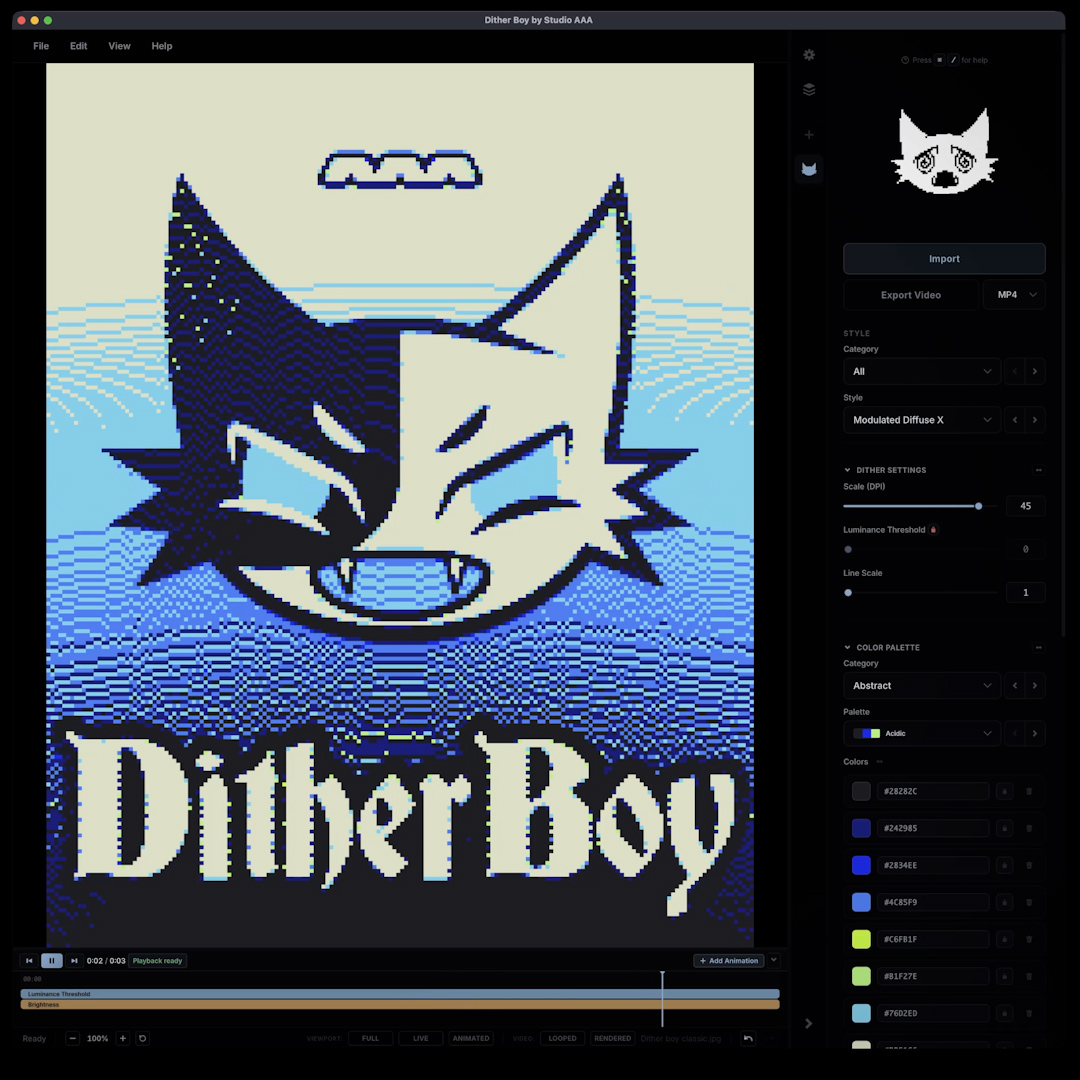
The Studio AAA blog returns! We have been spread quite thin this year so far and I have not had time to even think about writing down any of what I'm working on. By the time you see this, I will have already started putting together the next blog post which will have some free resources included! For now, here are 3 videos you can use to get up to speed with the newly overhauled Dither Boy v6.0
How to Install DLC:
Depending on when you got Dither Boy, you might have had some "DLC" (Downloadable Content) included in the form of a .zip file or .json files.
You can install .json files into Dither Boy and unlock new colour palettes, and this video shows you how, but if you just want the short version then:
- Open Dither Boy v6 or later
- Click the settings cog at the top right of the viewport. Next, go to library. Here you can see all currently installed palettes
- Close settings, Import an image and select any dithering algorithm. Next, in the main UI section click on "Import" and you can browse to import the downloaded files as colour palettes
How Dither Boy Presets Work:
Sometimes after following a tutorial we publish, you might end up with a new preset from the Dither Boy Discord server. If you want to know how presets work, here is a video for you!
All of Dither Boy's presets live in the same location I mention above, in the settings menu under "Library"
How to update Dither Boy for free:
We are currently working on a more typical updater for our software, but for now if you'd like help with updating, please watch this video.